Connect an AI tool
Let an AI app you already use work in your workspaces as you.
An AI tool is an AI app outside CogniPal that you let work in CogniPal as you. Once it's connected, you can ask it to save an idea, read a project's board or create tasks from the app you're already in. It sees only the workspaces you pick, and never more than you can see.
What you need
- A CogniPal account, and at least one workspace you're a member of.
- An AI tool that lets you add a custom connector. Its settings may call this a connector, an MCP server or an integration.
Connect it
Add CogniPal to your AI tool
In your AI tool's settings, add a custom connector with this address:
https://app.cognipal.ai/agent/mcpLeave any client ID or secret fields empty. Your AI tool opens CogniPal in your browser.
Sign in and pick your workspaces
Sign in to CogniPal if you aren't already. CogniPal shows the AI tool's name and asks which workspaces it can use.
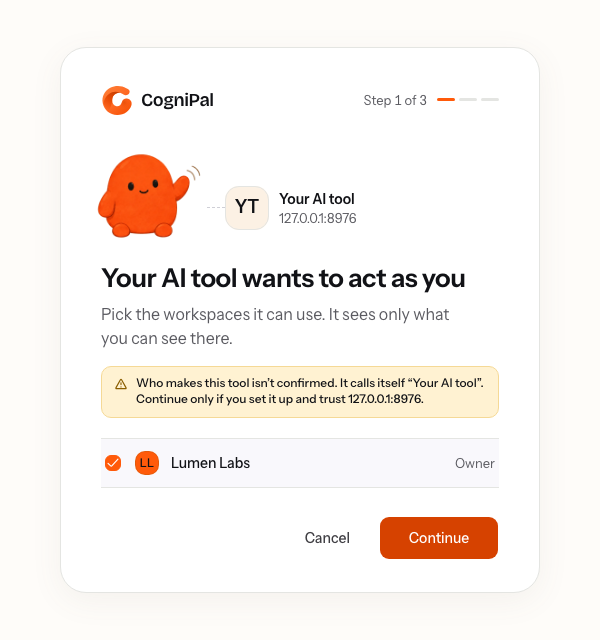
If CogniPal can't confirm who makes the AI tool, it tells you. Continue only if you added the tool yourself and trust the address shown.
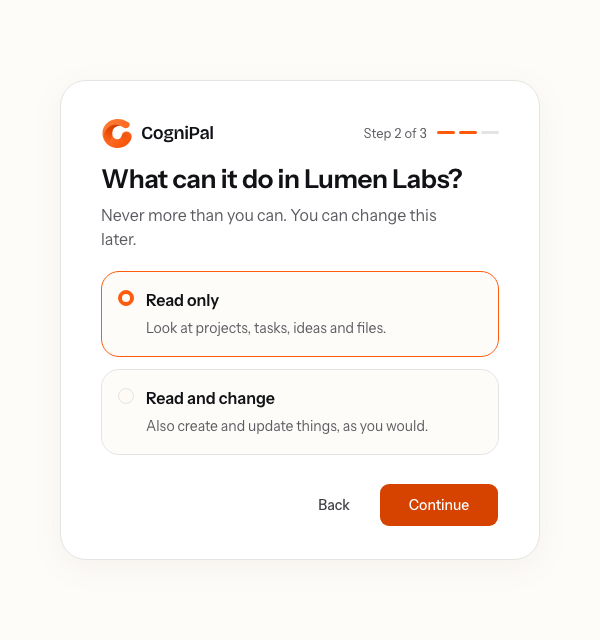
Choose what it can do
Pick Read only to let it look at projects, tasks, ideas and files. Pick Read and change to also let it create and update things, as you would.
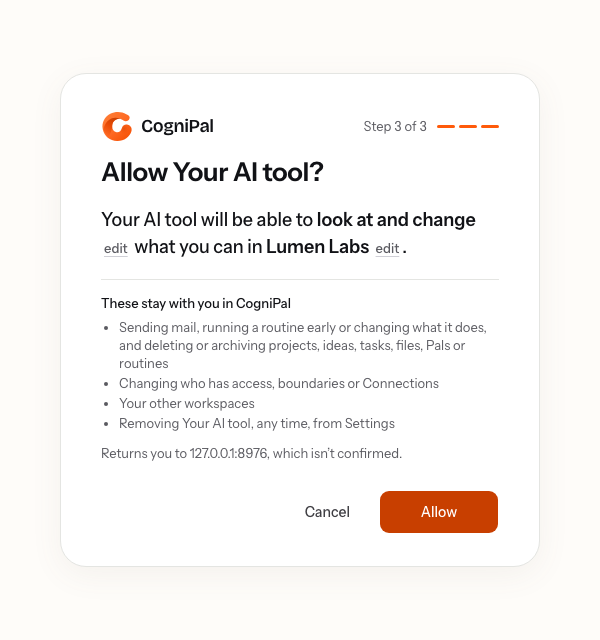
Allow it
The last step lists what the AI tool can do and what you still do yourself in CogniPal. Choose Allow to go back to your AI tool.
Try it
Ask your AI tool something that needs your workspace, for example:
- "What's on the Website relaunch board?"
- "Save an idea in CogniPal: the homepage should show the product working."
To save an idea in a specific project, paste the project's link from CogniPal into your request.
Change or remove it
Every AI tool you've allowed is listed in Settings › Security, under AI tools, with what it can do and when it was last used.
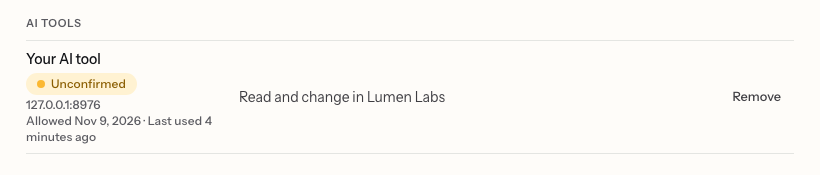
Choose an AI tool to change its workspaces or what it can do there. Choose Remove to end its access straight away.
For the full list of what it can and can't do, see What an AI tool can do.