What an AI tool can do
What a connected AI tool can read and change in your workspaces, and what you still do yourself in CogniPal.
An AI tool you allow acts as you. It works only in the workspaces you picked and can't do anything there that you can't. If you can't see a project, neither can it.
Read only, or read and change
When you allow an AI tool, you give it one of two levels in the workspaces you picked.
| Level | What it can do |
|---|---|
| Read only | Look at projects, tasks, ideas and files. |
| Read and change | Also create and update things, as you would. |
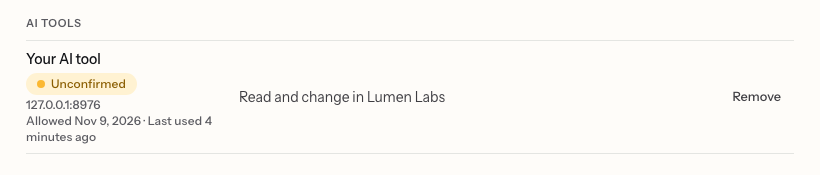
To change the level or the workspaces later, open Settings › Security and choose the AI tool under AI tools. If you move it up to Read and change, the AI tool may ask you to allow it again before it changes anything.
What it can do
With Read and change, an AI tool can do most things in CogniPal. For example:
- Ideas: start an idea, add to it, move it into a project, and turn it into tasks.
- Projects and tasks: create, edit and move tasks, assign them to a person or a Pal, comment, and post in a project's room.
- Files: read a file, write a new version, and attach it to a task.
- Pals and Routines: read what a Pal knows and has learned, and write a new Routine for a Pal.
What you still do in CogniPal
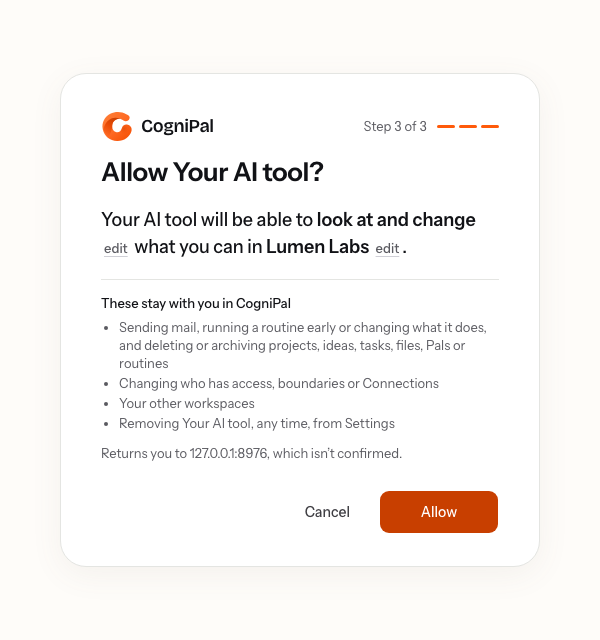
An AI tool can't do these things, even with Read and change:
- Sending mail.
- Deleting or archiving projects, ideas, tasks, files, Pals or Routines.
- Changing who has access, Boundaries or Connections.
- Running a Routine early, or changing what an existing Routine does.
- Anything you've set CogniPal to leave to you.
- Anything in a workspace you didn't pick.
If you ask for most of these, the AI tool gets a link to the page in CogniPal where you can do it yourself. You also see this list before you allow the AI tool:
Removing an AI tool
Open Settings › Security and choose Remove next to the AI tool. It loses access to your workspaces straight away. To use it again, connect it again from the AI tool.